Ihr Auto weiß mehr, als Ihr Armaturenbrett anzeigt. Bei jeder Fahrt erfasst es die Motordrehzahl, Kühlmitteltemperatur, Kraftstoffverhalten, Sensormesswerte und andere Werte.
Mit Carista können Sie diese Informationen über Apple CarPlay oder Android Auto auf den Dashboard-Bildschirm Ihres Autos bringen. Sie können Motordaten während der Fahrt sehen, ohne Ihr Telefon in der Hand zu halten oder zu raten, was unter der Motorhaube passiert.
Dieser Leitfaden zeigt Ihnen, wie Sie Live-OBD2-Daten in CarPlay, Live-Fahrzeugdaten in Android Auto und Echtzeit-OBD2-Datenansichten im Infotainmentsystem mit Carista einrichten.
Was bedeuten Live-OBD2-Daten?
Live-OBD2-Daten sind Echtzeitinformationen über Ihr Fahrzeug aus dem bordeigenen Diagnosesystem Ihres Autos. Statt auf eine Warnleuchte zu warten, können Sie die Fahrzeugleistung während der Fahrt überwachen und verstehen, was Ihr Auto gerade meldet.
Mit Carista können unterstützte Live-Daten unter anderem Motordrehzahl, Fahrzeuggeschwindigkeit, Kühlmitteltemperatur, Öltemperatur, Kraftstofftrims, Daten der Lambdasonde, Ansauglufttemperatur und weitere verfügbare Parameter umfassen. Die genaue Liste hängt von Marke, Modell, Baujahr, Motor und unterstützten Systemen Ihres Fahrzeugs ab.
Dadurch werden Live-Daten für den täglichen Fahrbetrieb, längere Fahrten und Kontrollen nach Reparaturen nützlich. Sie ersetzen nicht Ihr Armaturenbrett, sondern ergänzen fehlende Informationen.
Warum sollten Sie Carista auf dem Infotainment-Bildschirm Ihres Autos verwenden?
Die meisten Fahrer öffnen eine Diagnose-App nur, wenn sich etwas falsch anfühlt. Carista macht Live-Fahrzeugdaten während normaler Fahrten leichter zugänglich.
Wenn Ihre Daten in CarPlay oder Android Auto angezeigt werden, können Sie sie auf demselben Bildschirm ablesen, den Sie bereits für Karten und Medien verwenden. So erhalten Sie einen übersichtlicheren Einblick in Ihr Auto.

Was benötigen Sie vor der Einrichtung von CarPlay und Android Auto?
Bevor Sie beginnen, benötigen Sie drei Dinge: einen Carista-OBD2-Scanner, die Carista App und ein Auto mit CarPlay oder Android Auto.
Sie benötigen außerdem Zugang zum OBD2-Anschluss Ihres Autos. Er befindet sich normalerweise unter dem Armaturenbrett auf der Fahrerseite.
Verwende die von deinem Fahrzeug unterstützte Verbindung zwischen Smartphone und Fahrzeug: USB-Kabel, kabelloses CarPlay oder kabelloses Android Auto. Richte alles ein, während das Fahrzeug geparkt ist.
Wie verbinde ich mein Smartphone mit meinem Fahrzeug?
Wenn du nach „Wie verbinde ich mein Smartphone mit meinem Fahrzeug?“ oder „Wie kopple ich mein Smartphone mit meinem Fahrzeug?“ gesucht hast, beginne mit dem Unterschied zwischen Bluetooth und Smartphone-Projektion.
Bluetooth übernimmt normalerweise Anrufe, Audio und die grundlegende Kopplung. Apple CarPlay und Android Auto gehen weiter und zeigen unterstützte Smartphone-Apps auf dem Bildschirm deines Fahrzeug-Armaturenbretts an.
Verbinde dein iPhone über Apple CarPlay per USB oder kabellos, sofern dein Fahrzeug dies unterstützt. Laut Apple kann die CarPlay-Einrichtung das Aktivieren von Siri, die Verwendung des USB-Anschlusses des Fahrzeugs oder die Auswahl deines Fahrzeugs in den CarPlay-Einstellungen des iPhones umfassen.
Verbinde dich unter Android über Android Auto per USB oder kabellos, sofern dies unterstützt wird. Google beschreibt Android Auto als Möglichkeit, Apps auf das Fahrzeugdisplay zu bringen.
So aktivierst du Live-OBD2-Daten mit Carista
- Parke das Fahrzeug zuerst. Stecke den Carista-OBD2-Scanner in den OBD2-Anschluss und vergewissere dich, dass er fest sitzt.
- Schalte die Zündung ein oder starte den Motor. Öffne die Carista App auf deinem Smartphone und verbinde sie mit dem Scanner.
- Verbinde dein Smartphone über Apple CarPlay oder Android Auto mit deinem Fahrzeug. Verwende die von deinem Fahrzeug unterstützte kabelgebundene oder kabellose Methode.
- Öffne Carista auf deinem Infotainmentbildschirm. Folge den Anweisungen und wähle die Live-Datenansicht aus.

Android Auto vs. CarPlay: Ein Unterschied, den du kennen solltest
Das ist der entscheidende Einrichtungsunterschied.
In Android Auto öffnet ein Tippen auf „App öffnen“ Carista automatisch auf deinem Smartphone. Dadurch erfolgt die Übergabe vom Fahrzeugbildschirm an die App auf dem Smartphone automatisch.
In CarPlay ist das nicht möglich, da Apple dies nicht zulässt. Wenn du in CarPlay auf „App öffnen“ tippst, öffnest du Carista manuell auf deinem iPhone.
Carista verfügt für diesen Ablauf über einen eigenen Anleitungsbildschirm, damit der nächste Schritt klar ist. Wenn Carista in CarPlay nicht automatisch geöffnet wird, sind dein Scanner, dein Smartphone und dein Fahrzeug nicht unbedingt defekt.
Welche Live-Daten kannst du sehen?
Carista zeigt die Live-OBD2-Daten an, die dein Fahrzeug unterstützt. Die verfügbaren Parameter variieren je nach Marke und Modell.
Zu den üblichen Werten gehören möglicherweise Drehzahl, Geschwindigkeit, Kühlmitteltemperatur, Kraftstoffkorrekturen, Messwerte der Lambdasonden, Ansauglufttemperatur, Luftmassenstrom, Kraftstoffsystemstatus und batteriebezogene Daten.
Einige Fahrzeuge unterstützen möglicherweise erweiterte Werte wie Öltemperatur, Turbodaten, Getriebedaten, DPF-Informationen, DEF-Füllstand oder herstellerspezifische Messwerte. Wir werden bald alle unterstützten Live-Data-Parameter hinzufügen, damit Sie auf den vollständigen Umfang der verfügbaren Fahrzeugdaten zugreifen können.
So nutzen Sie Live-Fahrzeugdaten während der Fahrt sicher
Es geht nicht darum, Zahlen anzustarren. Ziel ist es, wichtige Fahrzeugdaten auf einen Blick lesbar zu machen.
Führen Sie während der Fahrt keine Fehlersuche durch. Wenn etwas ungewöhnlich aussieht, halten Sie sicher an, bevor Sie Details überprüfen.
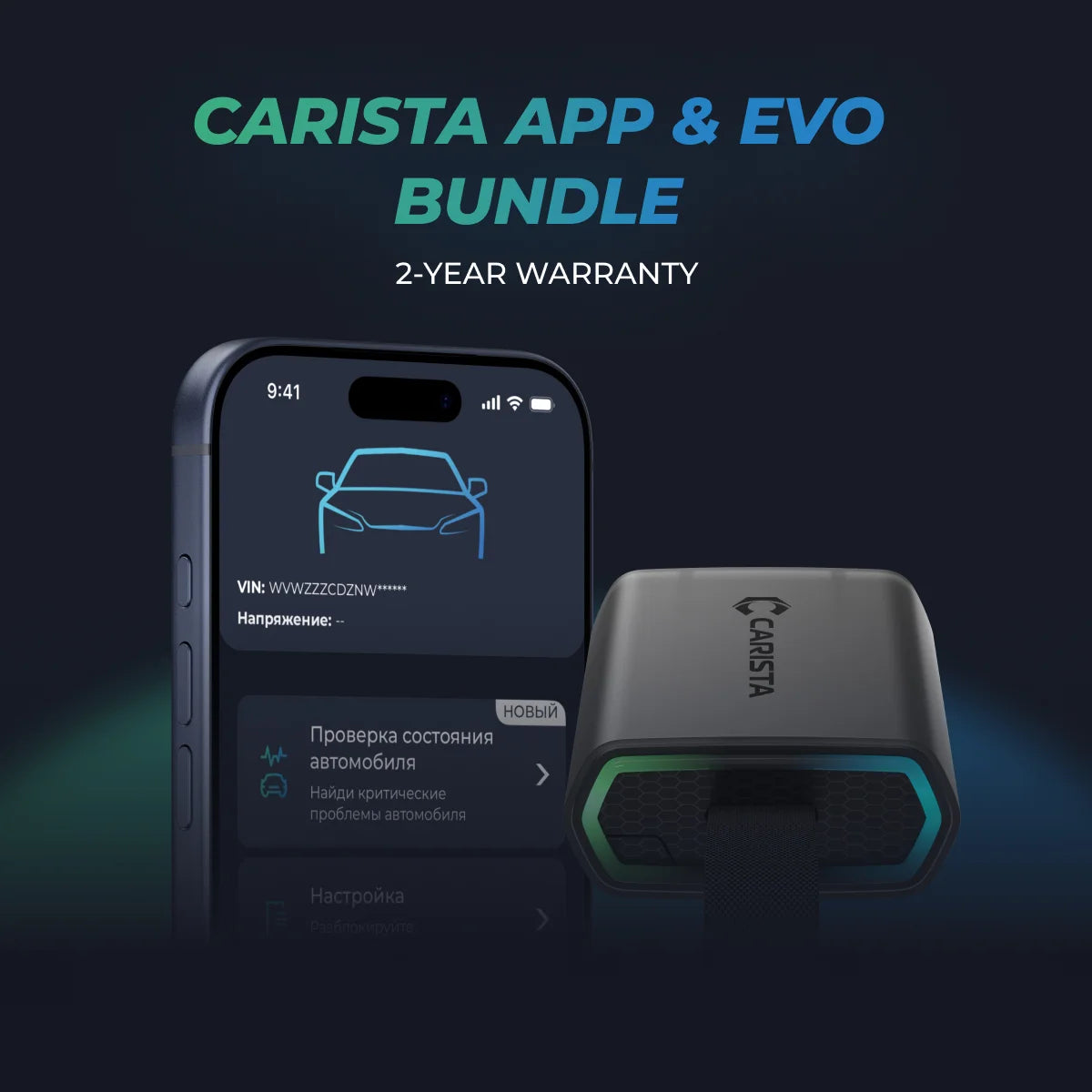
Mehr entdecken mit EVO Adapter
$109.99
- Vertrauenswürdig für über 2 Mio. Fahrer weltweit
- Offizieller Partner der VW Gruppe
- Über 200 versteckte Funktionen
- KOSTENLOSer Versand & 2 Jahre Garantie
Funktioniert am besten mit einem Carista App Pro Abonnement.
FAQ
Kann ich die Live-Daten meines Autos in CarPlay oder Android Auto sehen?
Ja. Mit einem Carista-OBD2-Scanner und der Carista-App werden Live-OBD2-Daten über Apple CarPlay und Android Auto direkt auf dem Infotainment-Bildschirm Ihres Fahrzeugs angezeigt.
Ist die Nutzung während der Fahrt sicher?
Die Benutzeroberfläche ist auf das Lesen auf einen Blick ausgelegt, damit Sie die Leistung überwachen können, ohne Ihr Smartphone zu berühren. Richten Sie alles vor der Fahrt ein und richten Sie Ihre Aufmerksamkeit auf die Straße.
Warum wird Carista in CarPlay nicht automatisch geöffnet?
Apple erlaubt es Apps nicht, über die Schaltfläche „App öffnen“ in CarPlay automatisch zu starten. Daher öffnen Sie Carista manuell auf Ihrem iPhone. Carista zeigt einen Schritt-für-Schritt-Bildschirm an, der Sie dabei unterstützt. In Android Auto wird die App durch Tippen auf „App öffnen“ automatisch gestartet.
Welche Live-Daten kann ich sehen?
Das hängt von Ihrem Fahrzeug ab – die Anzahl der verfügbaren Parameter variiert je nach Marke und Modell. Carista zeigt die Live-OBD2-Daten an, die Ihr spezifisches Fahrzeug unterstützt.
Brauche ich außer der App noch etwas?
Ja – einen Carista-OBD2-Scanner und ein Fahrzeug, das Apple CarPlay oder Android Auto unterstützt.
Sehen Sie, was Ihr Auto gerade macht
Ihr Auto muss zwischen den Wartungsterminen keine Blackbox sein. Mit Carista können Sie Live-OBD2-Daten über CarPlay und Live-Fahrzeugdaten über Android Auto in Ihren Alltag integrieren.
Richten Sie alles einmal ein, behalten Sie eine übersichtliche Ansicht und nutzen Sie den Bildschirm Ihres Fahrzeugarmaturenbretts für schnelle, nützliche Informationen, während Ihre Aufmerksamkeit auf der Straße bleibt.
*Haftungsausschluss: Die in diesem Artikel bereitgestellten Informationen dienen ausschließlich Bildungs- und Informationszwecken und sind nicht als professionelle Beratung zu verstehen. Obwohl wir uns bemühen, genaue und aktuelle Inhalte zu OBD2-Tools, Diagnosen und damit verbundenen Fahrzeugproblemen bereitzustellen, können die Besonderheiten je nach Fahrzeug variieren.
*Beachten Sie stets die Richtlinien des Fahrzeugherstellers und ziehen Sie bei komplexen oder kritischen Diagnoseproblemen professionelle Hilfe in Betracht.