CONCLUSIONES CLAVE:
-
El testigo de avería del motor está encendido, pero un solo código no muestra toda la situación.
Live Data muestra lo que realmente ocurre en este momento: RPM, temperatura del refrigerante, ajuste de combustible, voltaje del sensor de O2, lecturas del MAF, todo transmitido en tiempo real mientras el motor está en marcha. -
Live Data convierte las conjeturas en diagnóstico.
En lugar de preguntarte si se trata de un sensor de O2 débil, un MAF sucio o un problema de mezcla de combustible, observas los valores y lo sabes. -
Carista + el Lector Carista EVO lo cubre todo en una sola configuración.
Live Data, diagnósticos completos, preparación para el control de emisiones, reinicios de servicio y personalizaciones del vehículo: algunas funciones requieren una suscripción Pro y varían según el vehículo.
¿Qué son los datos en tiempo real de OBD2?
OBD2 significa diagnóstico a bordo, segunda generación. Es el sistema de diagnóstico que utiliza tu coche para supervisar el motor, las emisiones y los sistemas de control relacionados. Cuando la ECU detecta un problema, puede almacenar un código de avería de diagnóstico, también llamado DTC, y encender el testigo de avería del motor.
Live Data de OBD2 es diferente de los códigos de avería almacenados.
Un código de avería te indica qué fallo ha detectado la ECU. Live Data muestra lo que la ECU está viendo en este momento. Estas lecturas en tiempo real se denominan PID o identificadores de parámetros. Los datos PID de OBD2 pueden incluir las RPM del motor, la velocidad del vehículo, la temperatura del refrigerante, el ajuste de combustible a corto plazo, el ajuste de combustible a largo plazo, el voltaje del sensor de oxígeno, la temperatura del aire de admisión, el flujo de aire del sensor MAF y el estado del sistema de combustible, según lo que admita tu vehículo.
Piénsalo así: un código de avería es la advertencia. Live Data es la evidencia.
Conoce las principales diferentre Live Data de OBD2 y los datos de Freeze Frame
Por ejemplo, un código de mezcla de combustible pobre no significa automáticamente que necesites un sensor de O2 nuevo. Live Data puede mostrar si la ECU está añadiendo combustible, si el sensor MAF registra un valor demasiado bajo, si el sensor de O2 responde con normalidad o si puede estar entrando aire adicional en la admisión. Eso te ayuda diagnostica de forma más inteligente antes de sustituir piezas.
Parámetros clave de Live Data de OBD2 que debes supervisar
Empieza por los valores que explican la temperatura del motor, el aire, el combustible y la combustión. La disponibilidad depende de la marca, el modelo, el año, el motor y los módulos compatibles de tu coche.

Consejo profesional: para detectar fallos de encendido o un ralentí irregular, supervisa conjuntamente las RPM, el STFT, el LTFT y los datos del sensor de O2. Un solo valor rara vez demuestra cuál es el problema. Lo importante es el patrón.
Lo que necesitas para leer datos Live Data de OBD2
Para leer los datos de los sensores del coche con el teléfono, necesitas tres cosas:
-
Un lector OBD2
El lector se conecta al puerto OBD2 de tu vehículo y permite que la App Carista se comunique con el vehículo. Es posible que veas términos de búsqueda como lector Bluetooth OBD2 o lector ELM327, pero para una experiencia más clara, considera el dispositivo como un lector OBD2. El mejor lector OBD2 para datos en tiempo real debería conectarse de forma fiable, funcionar sin problemas con tu teléfono y ser compatible con las funciones que necesitas. -
La App Carista
La App muestra los datos. Convierte la información sin procesar de los sensores en valores, listas y pantallas de diagnóstico fáciles de leer. La App Carista está disponible para Android/iOS y está diseñada para propietarios de vehículos que quieren información útil sin utilizar un software de taller complicado. -
Un vehículo compatible
La mayoría de los vehículos modernos son compatibles con los datos OBD2 estándar, pero no todos admiten todos los PID. Los datos ampliados en tiempo real, la temperatura del aceite, la velocidad de las ruedas, los datos del turbo, los datos de la transmisión, los datos de la batería o la información específica del fabricante dependen de la configuración de tu vehículo.
Por eso, la App Carista combinada con el Lector OBD2 Carista EVO es la opción más recomendable para la mayoría de los usuarios que realizan el diagnóstico por su cuenta. Obtienes datos OBD2 en tiempo real, información del testigo de avería del motor, lectura y borrado de códigos de avería, comprobaciones de preparación para las emisiones, funciones de servicio compatibles y personalizaciones compatibles del vehículo, todo en un solo sistema.
Antes de comprar, comprueba que tu vehículo sea compatible con Carista y revisa qué funciones están disponibles para tu modelo exacto.

Paso a paso: cómo leer datos OBD2 en tiempo real
Encuentra la ubicación del puerto OBD2
El puerto OBD2 suele estar debajo del salpicadero del lado del conductor, cerca de la columna de dirección, encima de los pedales o junto a la caja de fusibles. Algunos vehículos lo ocultan detrás de una pequeña cubierta de plástico. Si no lo encuentras, consulta el manual del propietario o busca información con la marca, el modelo y el año exactos.
Conecta el Lector OBD2 Carista EVO
Conecta firmemente el Lector OBD2 Carista EVO al puerto OBD2. El conector encaja en una sola dirección, así que no lo fuerces. Apagar el vehículo antes de conectar el lector es una buena costumbre, pero lo importante es que quede completamente insertado.
Activa el encendido
Gira la llave a la posición «Encendido» o pulsa el botón de arranque sin pisar el freno si solo necesitas datos con el encendido activado. Para la mayoría de los datos en tiempo real, arranca el motor. El LED del lector debería encenderse o parpadear, lo que indica que recibe alimentación.
Activa el Bluetooth y abre la App Carista
Asegúrate de que el Bluetooth esté activado en tu teléfono. Con el Lector OBD2 Carista EVO, no necesitas emparejar manualmente el lector en los ajustes de Bluetooth de tu teléfono antes de usarlo. Abre la App Carista y sigue la configuración que aparece en pantalla.
Selecciona Carista como tu lector
Cuando la App Carista te pregunte qué tipo de lector estás utilizando, selecciona Carista. Después, toca Conectar y permite que la App se comunique con tu vehículo.
Ve a los datos en vivo básicos
Ve a la sección de datos en vivo de la App y toca el botón Datos en vivo básicos de OBD2. Aquí verás los datos estándar de los sensores y los parámetros en tiempo real, como las RPM del motor y los ajustes de combustible.
Selecciona los PID adecuados
No selecciones todos los parámetros a la vez. Demasiados PID pueden ralentizar la velocidad de actualización y dificultar la lectura de la pantalla.
Para un ralentí inestable, selecciona las RPM, STFT, LTFT, los datos del sensor de O2, los datos del sensor MAF y la temperatura del refrigerante, si están disponibles.
Para un sobrecalentamiento, selecciona la temperatura del refrigerante, la temperatura del aire de admisión, la carga del motor, la temperatura del aceite y los datos relacionados con el ventilador, si son compatibles.
Para un consumo de combustible elevado, selecciona los ajustes de combustible, las lecturas del sensor MAF, los datos del sensor de O2, la temperatura del refrigerante y el estado del sistema de combustible, si están disponibles.
Supervisa los datos al ralentí y mientras conduces de forma segura
Empieza con el motor caliente al ralentí. Después, compara las lecturas al acelerar ligeramente, circular a velocidad constante y acelerar, si es necesario. Nunca mires el teléfono mientras conduces. Pide a un pasajero que observe la App Carista o grabe los datos para revisarlos más tarde.
Desbloquea más con el paquete Carista $109.99 Todo lo que necesitas en un solo pedido.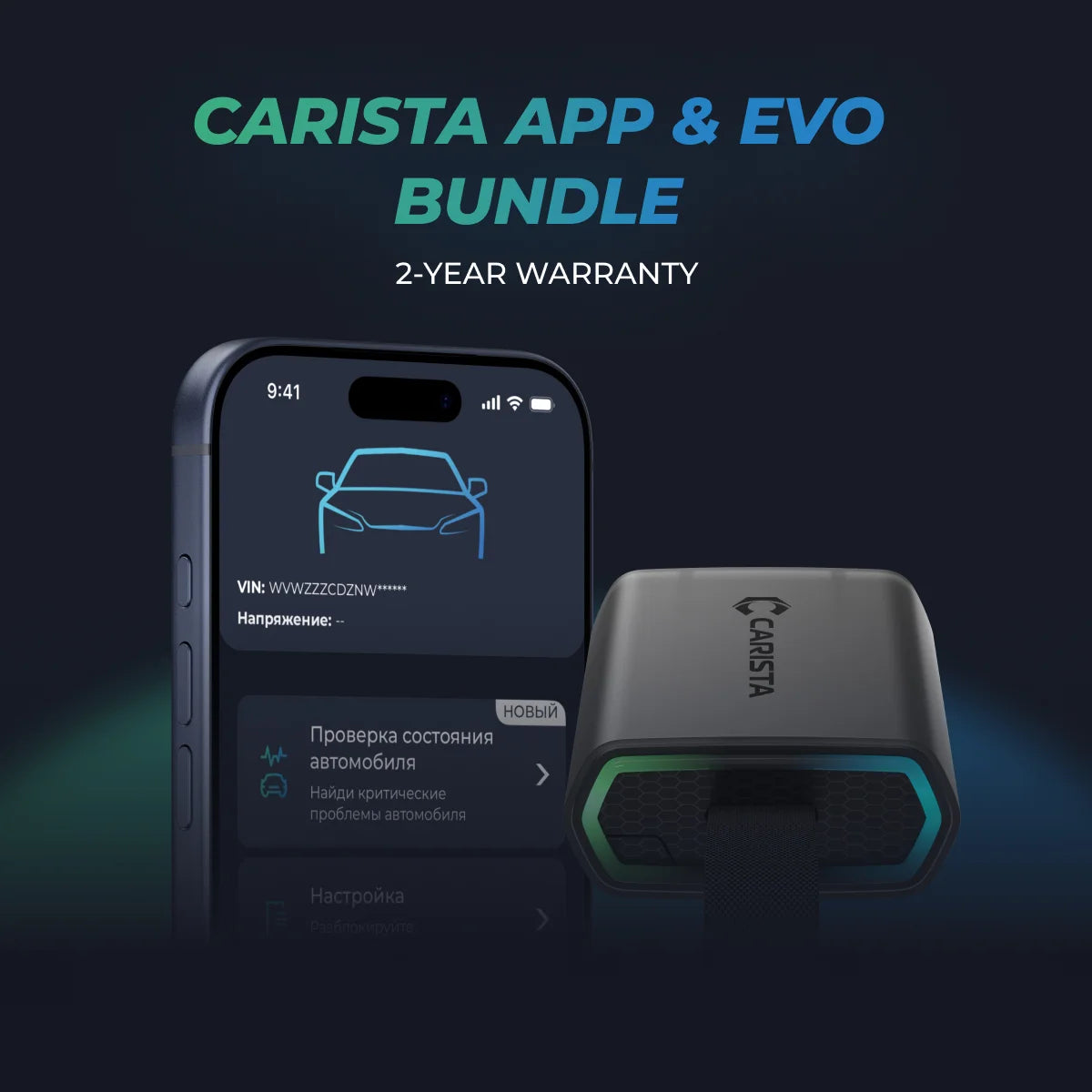
Cómo leer los datos en vivo del ajuste de combustible
El ajuste de combustible muestra si la ECU añade o elimina combustible para controlar la mezcla de aire y combustible.
El ajuste de combustible a corto plazo, o STFT, cambia rápidamente. El ajuste de combustible a largo plazo, o LTFT, cambia más lentamente porque muestra la corrección aprendida con el tiempo.
El ajuste de combustible positivo significa que la ECU está añadiendo combustible. Esto suele indicar una condición de mezcla pobre, como una fuga de vacío, aire de admisión no medido, un suministro de combustible insuficiente, una fuga de escape antes del sensor de O2 o datos incorrectos del sensor MAF.
El ajuste de combustible negativo significa que la ECU está reduciendo combustible. Esto puede indicar una condición de mezcla rica, como inyectores con fugas, una presión de combustible excesiva, datos incorrectos del sensor o demasiado combustible entrando en el motor.
Una pequeña corrección es normal. Una corrección grande merece una investigación. No reemplaces piezas basándote únicamente en el ajuste de combustible. Úsalo como orientación y, después, confirma mediante inspección y pruebas.

Cómo leer los datos en vivo del sensor de O2
Los datos en vivo del sensor de O2 te ayudan a comprender la combustión y el comportamiento del catalizador.
El sensor de O2 anterior al catalizador se encuentra antes del catalizador y ayuda a la ECU a ajustar la mezcla de combustible. El sensor de O2 posterior al catalizador se encuentra después del catalizador y ayuda a supervisar la eficiencia del catalizador.
En muchos vehículos, el sensor anterior al catalizador cambia activamente mientras la ECU corrige la mezcla. El sensor posterior al catalizador normalmente debería ser más estable si el catalizador funciona correctamente. Si el sensor posterior sigue de cerca al sensor anterior, la eficiencia del catalizador puede estar reducida.
Esto por sí solo no demuestra que el catalizador esté averiado. Compara siempre los datos del sensor de O2 con los códigos de avería, los datos del cuadro congelado, los ajustes de combustible, la temperatura del refrigerante y los síntomas reales.
Problemas comunes que puedes diagnosticar con datos en tiempo real
Ralentí irregular
Si el motor tiembla al ralentí, observa las RPM, el STFT, el LTFT, los datos del sensor MAF, los datos del sensor de O2 y los contadores de fallos de encendido, si son compatibles. Un ajuste de combustible positivo elevado al ralentí que mejora a RPM más altas puede sugerir una fuga de vacío. Unas RPM inestables pueden apuntar a problemas en el cuerpo de mariposa, problemas de encendido, fugas de aire o datos incorrectos de los sensores.
Consumo elevado de combustible
Controla el ajuste de combustible, la temperatura del refrigerante, la temperatura del aire de admisión, las lecturas del sensor MAF, los datos del sensor de O2 y el estado del sistema de combustible cuando estén disponibles. Si el motor nunca alcanza la temperatura normal, puede consumir más combustible. Si el ajuste de combustible es muy negativo, el motor puede estar funcionando con una mezcla demasiado rica.
Sobrecalentamiento
Observa la temperatura del refrigerante desde el arranque en frío hasta que se caliente por completo. Un motor en buen estado se calienta gradualmente y luego estabiliza su temperatura. Si la temperatura sigue subiendo, comprueba el nivel del refrigerante, el funcionamiento del termostato, el funcionamiento del ventilador del radiador, el flujo de aire y posibles fugas.
Problemas del catalizador
Compara los datos de los sensores de O2 anteriores y posteriores al catalizador. Un catalizador en buen estado suele hacer que la señal posterior sea más uniforme que la señal anterior. Si ambas señales parecen demasiado similares, es necesario realizar más pruebas.
Fallos de encendido
Los fallos de encendido pueden aparecer como caídas de RPM, ralentí irregular, luz de avería del motor parpadeante, cambios en el ajuste de combustible o aumentos del contador de fallos de encendido, si son compatibles. Un fallo de encendido en un solo cilindro puede apuntar a una bujía, una bobina de encendido, un inyector, un problema de compresión o una avería en el cableado. Los fallos de encendido aleatorios pueden apuntar al suministro de combustible, fugas de vacío, medición del aire o problemas mecánicos.

Buenas prácticas para obtener lecturas precisas de datos en tiempo real
Lee los datos en tiempo real con un objetivo claro. Empieza por el síntoma, después lee los códigos de avería, comprueba los datos del cuadro congelado y elige los parámetros relacionados.
Calienta el motor antes de evaluar la mayoría de los valores. Las lecturas durante el arranque en frío pueden ser diferentes porque la ECU está calentando el motor y el catalizador.
Observa los valores relacionados juntos. El ajuste de combustible y los datos del sensor de O2 proporcionan más información que cualquiera de ellos por separado. La temperatura del refrigerante y el comportamiento del ventilador proporcionan más información que la temperatura del refrigerante por sí sola.
No borres los códigos demasiado pronto. Borrar los códigos puede eliminar los datos del cuadro congelado y restablecer los monitores de preparación del sistema de emisiones. Guarda primero la información.
Preguntas frecuentes
¿Qué son los datos en tiempo real de OBD2?
Los datos en tiempo real de OBD2 son información de los sensores transmitida en tiempo real desde la ECU de tu coche a través del puerto OBD2. Incluyen PID como las RPM, la temperatura del refrigerante, el ajuste de combustible, el voltaje del sensor de O2, los datos del sensor MAF, la temperatura del aire de admisión y el estado del sistema de combustible, según la compatibilidad del vehículo.
¿Necesito un lector especial para leer datos en tiempo real?
Necesitas un lector OBD2 compatible con datos en tiempo real y una App que pueda mostrarlos. Para obtener la mejor configuración para el uso diario, utiliza el Lector OBD2 Carista EVO con la App Carista.
¿Qué App OBD2 es la mejor para consultar datos en tiempo real?
Carista es una excelente opción si quieres datos en tiempo real junto con diagnósticos, comprobación de preparación para emisiones, herramientas de servicio y personalizaciones compatibles. Para consultar datos OBD2 básicos en tiempo real, pueden funcionar varias Apps; la ventaja de Carista es su paquete más completo de herramientas para el propietario cuando se combina con un lector compatible y un vehículo compatible.
¿Puedo leer datos en tiempo real sin que el motor esté en marcha?
Sí, pero solo algunos parámetros. Con el contacto encendido y el motor apagado, es posible que veas el voltaje de la batería, la posición del acelerador, la temperatura del aire de admisión y algunos voltajes de los sensores, si son compatibles. La mayoría de las lecturas útiles, incluidos los datos de RPM, del sensor MAF, del ajuste de combustible, del sensor de O2 y del estado del sistema de combustible, requieren que el motor esté en marcha.
¿Por qué algunos PID no están disponibles en mi coche?
No todos los vehículos son compatibles con todos los PID de OBD2. Los datos OBD2 estándar son habituales, pero los datos ampliados o específicos del fabricante dependen del vehículo, la ECU, la configuración y las funciones compatibles de la App.
¿Es seguro conducir mientras leo datos OBD2 en tiempo real?
Solo si lo haces de forma segura. No mires el teléfono mientras conduces. Pide a un pasajero que supervise la App Carista o graba los datos y revísalos más tarde.
¿Con qué frecuencia se actualizan los datos OBD2 en tiempo real?
La velocidad de actualización depende del vehículo, el lector, la App, la calidad de la conexión y la cantidad de PID seleccionados. Para obtener lecturas más claras, supervisa solo los parámetros que necesitas en lugar de seleccionar todos los valores disponibles.
Reflexiones finales
Aprender a leer los datos OBD2 en tiempo real te ayuda a dejar de adivinar. Puedes ver qué está haciendo tu coche en tiempo real, entender los datos de los sensores relacionados con una luz de avería del motor y tomar mejores decisiones
Empieza por lo básico: conecta el Lector OBD2 Carista EVO, abre la App Carista, ve a datos en tiempo real y supervisa las RPM, la temperatura del refrigerante, el ajuste de combustible, los datos del sensor de O2, las lecturas del sensor MAF y el estado del sistema de combustible cuando estén disponibles.
Tu coche ya está recopilando los datos. Con Carista, por fin puedes leerlos, entenderlos y utilizarlos.
*Descargo de responsabilidad: La información proporcionada en este artículo tiene únicamente fines educativos e informativos y no debe considerarse asesoramiento profesional. Aunque nos esforzamos por ofrecer contenido preciso y actualizado sobre herramientas OBD2, diagnósticos y problemas automovilísticos relacionados, las características específicas de cada vehículo pueden variar.
*Consulta siempre las pautas del fabricante de tu vehículo y considera buscar asistencia profesional al tratar problemas de diagnóstico complejos o críticos.